LinkedIn Chart Generator
Make scroll-stopping animated charts for LinkedIn. Export as MP4, GIF, PNG or SVG.
Free to try · No design skills · Ready in about two minutes
Trusted by 1,198 users, including people at
 ByteDance
 Arizona State
 Fox
Fox UT Austin
 Roche
Roche Tulane
 United Airlines
 Clemson
 NHS
NHS Ayming
 Marquette
 Kent State
 Ray White
 UC Riverside
 CBA
CBA Illinois Tech
 Venngage
 Hofstra
 House of Communication
 IIT Madras
 Sotherly Hotels
 Zenus.ai
Overview
What this tool is for
The LinkedIn feed rewards motion. A static spreadsheet screenshot gets scrolled past in half a second, but a chart where the bars grow or the line draws itself on makes people pause long enough to actually read your number. That pause is the whole game: more dwell time means more reach.
Posts about numbers, a revenue milestone, a campaign result, a before-and-after, are some of the highest-performing content on the platform precisely because they are concrete. The trick is presentation. The same data that reads as a boring table reads as momentum when it animates in on your brand colours.
Reochart is built for the feed. Paste your data, pick a style and an aspect ratio that fills the most screen (square or portrait), and export an MP4 or GIF that plays natively in the post. No design skills, no charting library, about two minutes from numbers to something worth posting.
How it works
How to make a LinkedIn chart
Pick the chart that fits your point, bars for a comparison, a line or area for a trend, a counter for a single milestone, then paste your data. Choose square (1:1) or portrait (4:5) so the post fills the feed, set your brand colours, and export an MP4 or GIF.
Upload the file natively to LinkedIn rather than linking out; native video and GIFs autoplay and reach further. Lead your caption with the number, and let the animation do the rest.
Examples
Example charts
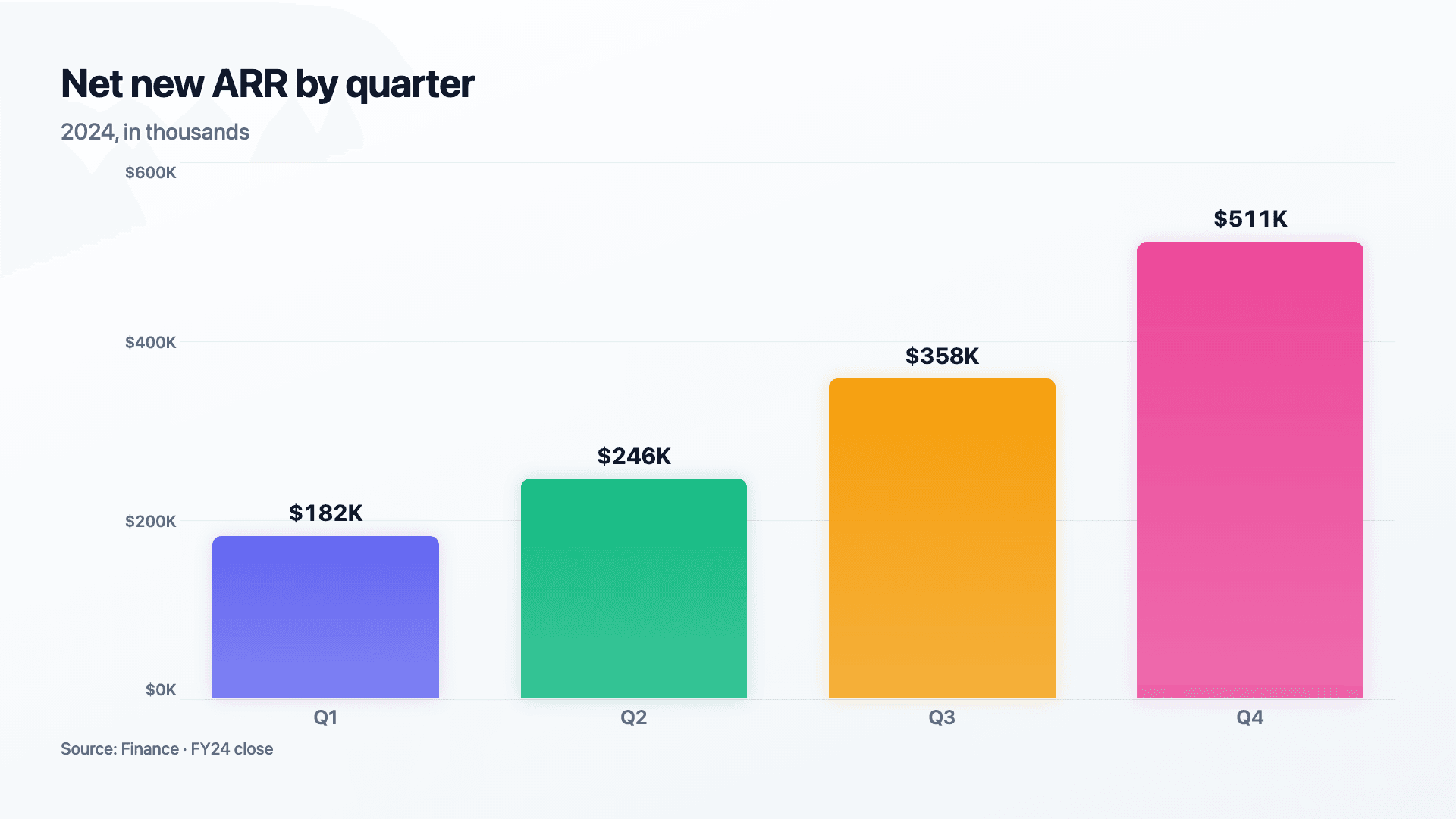
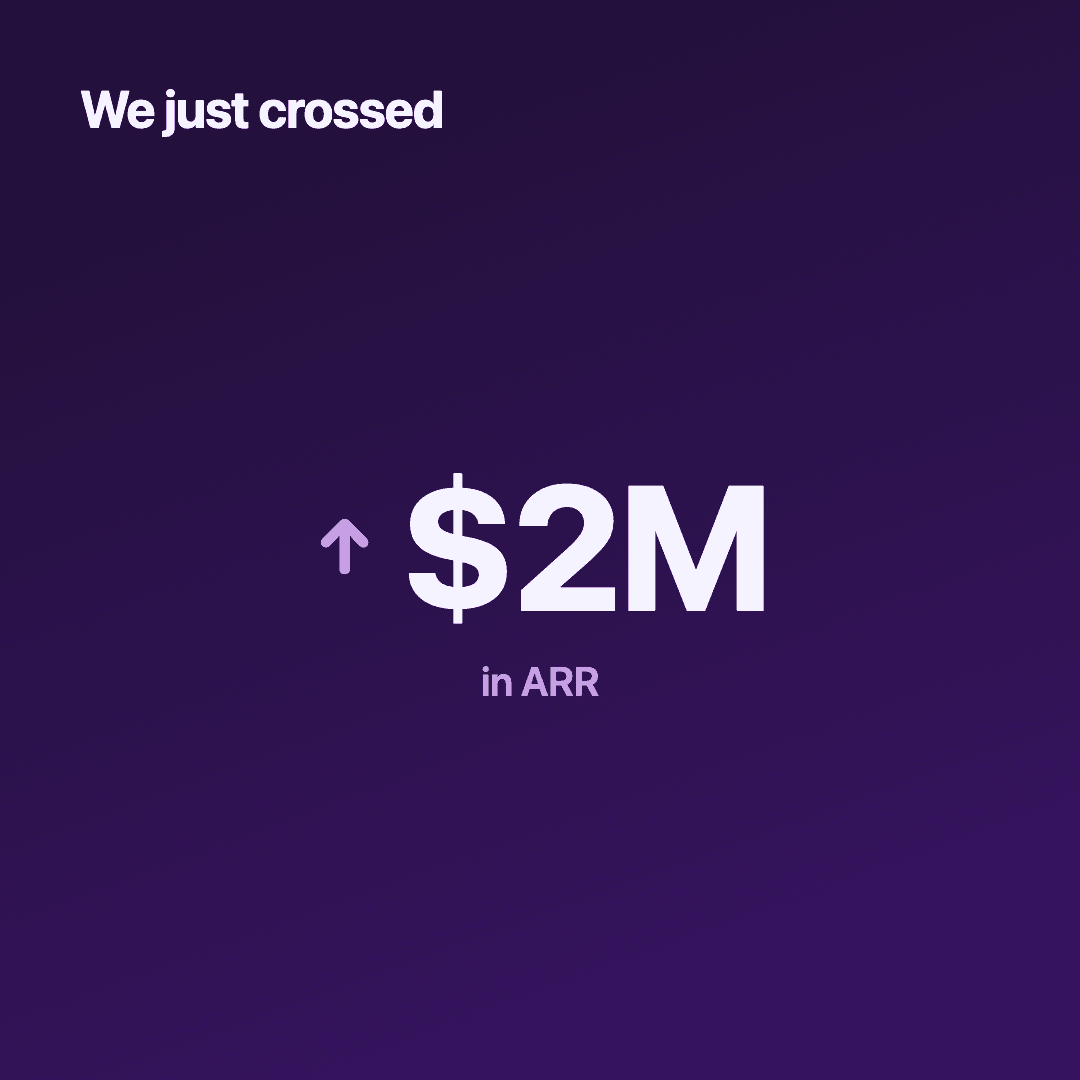
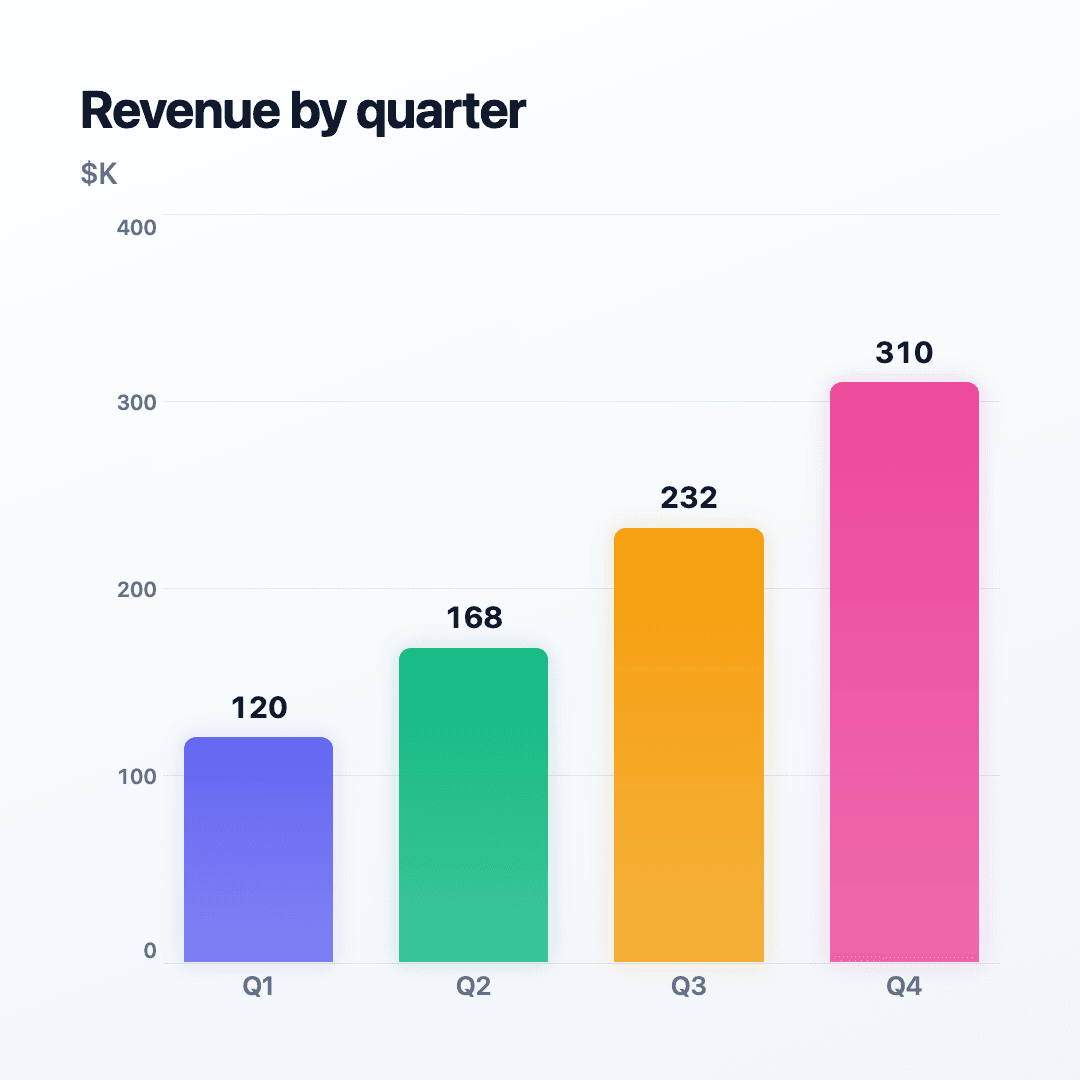
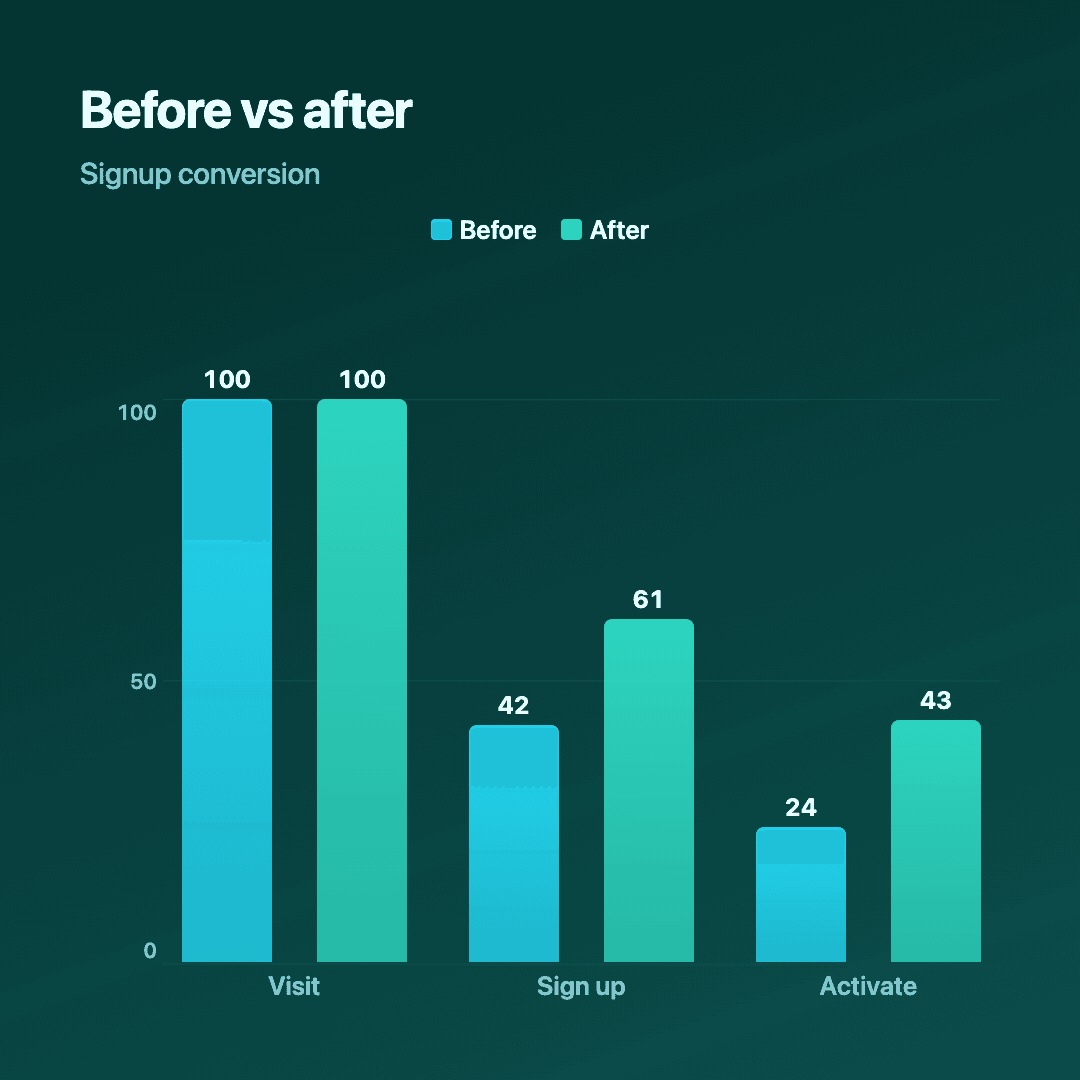
Real charts made in Reochart, each with its own data and theme. They animate automatically as you scroll.
Good fit
When to use it
- ✓Sharing a metric or milestone
- ✓Campaign and growth results
- ✓Before-and-after comparisons
- ✓Weekly or monthly recaps
- ✓Build-in-public updates
Reach for something else
When not to use it
- ✕The data needs heavy caveats, a feed post is the wrong place for fine print.
- ✕You have many series, the feed is small; keep it to one clear point.
- ✕It is confidential, a public post is permanent.
- ✕A static image would do and you do not want motion, just export a PNG.
Compare
Which chart to use
Which chart for which LinkedIn post.
| Post type | Best chart | Format |
|---|---|---|
| A milestone | Number counter | Square (1:1) |
| A comparison | Bar / grouped bar | Square or portrait |
| A growth trend | Line or area | Square or portrait |
| A funnel result | Funnel | Portrait (4:5) |
Your data
What data you need
Whatever your point needs: label-and-value rows for most charts, a single value for a counter. Paste from a sheet; pick a square or portrait format for the feed.
| Label | Value |
|---|---|
| Q1 | 120 |
| Q2 | 168 |
| Q3 | 232 |
| Q4 | 310 |
Step by step
How to make one
Drop your numbers in, or import a CSV.
Choose the chart, theme and animation speed.
Tune colours, labels and add your brand.
Download MP4, GIF, PNG or SVG.
Best practices
Get it right
- ✓Use square (1:1) or portrait (4:5) to fill the feed.
- ✓Export MP4 or GIF and upload natively.
- ✓Make one clear point per post.
- ✓Lead the caption with the headline number.
- ✕Post a tiny 16:9 chart that gets lost in the feed.
- ✕Link out to a chart instead of uploading the file.
- ✕Cram several metrics into one feed graphic.
- ✕Rely on fine print, the feed is for the headline.
Watch out
Common mistakes to avoid
A landscape chart takes up little vertical space and gets scrolled past. Square or portrait fills the feed and earns dwell time.
Native video and GIFs autoplay and reach further than an external link. Upload the file itself.
The feed rewards a single clear idea. Several metrics at once dilute the hook, split them into a carousel or separate posts.
If the viewer has to decode the chart to find the point, you have lost them. Put the number in the caption and the title.
Why Reochart
Built for sharing, not just charting
- ✓No design skills required
- ✓Animated MP4 and GIF exports
- ✓PNG and scalable SVG too
- ✓Your brand colours and logo (Pro)
- ✓Paste from a sheet or import a CSV
- ✓Presentation and feed ready in minutes
FAQ
Frequently asked questions
What makes a chart work on LinkedIn?
A chart that performs on LinkedIn is built for a feed rather than a document, which changes almost every design decision. It is scrolled past on a phone, so text has to be large enough to read at thumbnail size and the chart has to make one point rather than three. It autoplays without sound, so motion has to carry the interest that a voiceover would carry in a presentation. And it competes with everything else in the feed for roughly two seconds, which is why an animated MP4 or GIF consistently outperforms a static image: movement stops the scroll before the content has to earn attention. Square or portrait aspect ratios take up more vertical space on mobile than landscape, and a short clip of three to six seconds loops cleanly without dragging.
What format should I post on LinkedIn?
MP4 plays smoothest in the feed and GIF autoplays everywhere. Upload the file natively rather than as a link for the most reach.
What size should a LinkedIn chart be?
Square (1:1) or portrait (4:5) take up the most feed space. Reochart exports both, plus 16:9 landscape and 9:16 story.
Which chart works best on LinkedIn?
Whatever makes one clear point: a counter for a milestone, bars for a comparison, a line or area for a trend. Keep it to a single idea per post.
Do I need design skills?
No. Paste your data, pick a style and your brand colours, and export. It takes about two minutes.
Can I make it animated?
Yes. Charts animate by default, and you can export the animation as an MP4 or GIF, or grab a static PNG or SVG if you prefer.
Is Reochart free?
Yes. The free plan lets you make every chart type except the animated bar chart race, and export an animated MP4 with a small watermark, no card needed. Pro adds the bar chart race, removes the watermark, and adds GIF and SVG, your brand colours and logo, longer videos and CSV import.
Keep exploring
Related generators
From the blog
Learn more about charts and data storytelling

11 min read
How to Create an Animated Number Counter
A step-by-step guide to building a number counter that actually lands: picking the number worth this treatment, setting an honest start point, adding the context that makes it mean something, and exporting an animated version for a launch post, a deck, or a milestone update.
Read article →

11 min read
How to Build a QBR Dashboard
A practical guide to building the handful of charts a quarterly business review actually needs: the growth number, the bridge that explains it, the pipeline read, the KPI scorecard, and the roadmap for what's next.
Read article →